
The mini PC landscape is experiencing a quiet revolution, and it’s happening through a connector most people have never heard of. While the tech world obsesses over the latest USB4 and Thunderbolt iterations, a growing number of Chinese mini PC manufacturers are doing something unexpected: they’re equipping their compact systems with OCuLink ports. This seemingly niche feature is transforming how we think about external GPUs, and it’s making the oculink egpu mini pc setup the new holy grail for anyone who wants desktop-class graphics performance without the desktop-class footprint.
Here’s the thing about traditional eGPU solutions: they’ve always been a compromise. Thunderbolt 3 and 4, despite their impressive marketing numbers, introduce overhead and latency that can cost you 15-30% of your GPU’s potential performance. USB4, while better, still carries similar baggage because it’s tunneling PCIe over a protocol designed for versatility rather than raw speed. OCuLink, on the other hand, is essentially naked PCIe lanes running through a cable—no translation, no tunneling, minimal overhead. For mini PC enthusiasts, content creators, and compact gaming rig builders, this is a game-changer that deserves serious attention.

OCuLink vs Thunderbolt eGPU — Where the Real Difference Lives
Let’s cut through the marketing speak and look at what actually separates oculink vs thunderbolt egpu setups. The difference isn’t just academic—it shows up in your frame rates, render times, and overall system responsiveness.
Thunderbolt, whether version 3 or 4, operates at 40 Gbps bidirectional bandwidth. Sounds impressive until you realize that PCIe 3.0 x4—what OCuLink typically runs—delivers roughly 32 Gbps of dedicated bandwidth, but critically, it does so with dramatically lower latency and protocol overhead. Thunderbolt needs to encapsulate PCIe data into its own protocol, which introduces translation layers and timing penalties. OCuLink just… doesn’t. It’s PCIe, running outside your case.
In real-world gaming scenarios, this manifests as a 5-15% performance advantage for OCuLink over Thunderbolt when using identical GPUs. A Thunderbolt eGPU might see 20-25% performance loss compared to the same card running internally, while OCuLink setups typically stay within 10-15% of native performance. That difference becomes more pronounced at higher resolutions and in CPU-light, GPU-heavy workloads.
But there’s a compatibility trade-off. Thunderbolt is plug-and-play on modern operating systems, with driver support baked into Windows, macOS, and Linux. OCuLink is more of a Wild West situation—it’s treated as a native PCIe device, which means better performance but also means your mini PC needs proper BIOS support for external GPU initialization. Most Chinese manufacturers building OCuLink-equipped mini PCs have figured this out, but it’s not as universally polished as Thunderbolt.
| Feature | OCuLink | Thunderbolt 3/4 |
|---|---|---|
| Protocol | Direct PCIe 3.0 x4 | PCIe tunneling over TB |
| Bandwidth | ~32 Gbps (dedicated) | 40 Gbps (shared, bidirectional) |
| Typical Performance Loss | 10-15% | 20-25% |
| Latency | Minimal (native PCIe) | Higher (protocol overhead) |
| OS Compatibility | Good (requires BIOS support) | Excellent (universal driver support) |
| Cable Power Delivery | No | Yes (up to 100W) |
USB4 eGPU Performance — Better Than TB3/4, But Still Not Pure PCIe
USB4 deserves its own conversation because it represents the industry’s attempt to democratize Thunderbolt-level performance. In terms of usb4 egpu performance, we’re looking at similar 40 Gbps bandwidth to Thunderbolt 4, and in many cases, nearly identical real-world results since USB4 includes the Thunderbolt 3 protocol as part of its specification.
The performance gains over older Thunderbolt 3 implementations are modest but real. USB4 has more efficient power management and slightly reduced overhead in optimal conditions. You might see 2-5% better frame rates with a USB4 eGPU setup compared to TB3, particularly in scenarios involving high-bandwidth peripheral usage alongside the eGPU.
However—and this is critical—USB4 still suffers from the fundamental limitation of protocol encapsulation. When you’re pushing a high-end GPU through USB4, you’re asking the system to constantly translate between PCIe and USB4’s packet structure. This isn’t just about raw bandwidth anymore; it’s about latency spikes when the GPU is waiting for the next instruction from the CPU, especially in gaming scenarios with high frame rates.
OCuLink sidesteps this entirely because there’s no translation layer. The GPU sees itself as connected directly to the PCIe bus, because functionally, it is. For productivity workloads like video editing where sustained bandwidth matters more than microsecond-level latency, USB4 and OCuLink perform more similarly. But for gaming, particularly competitive gaming where frame timing consistency matters, OCuLink’s direct approach provides smoother, more predictable performance.
Mini PC with OCuLink Port — The Chinese Manufacturers Leading the Charge
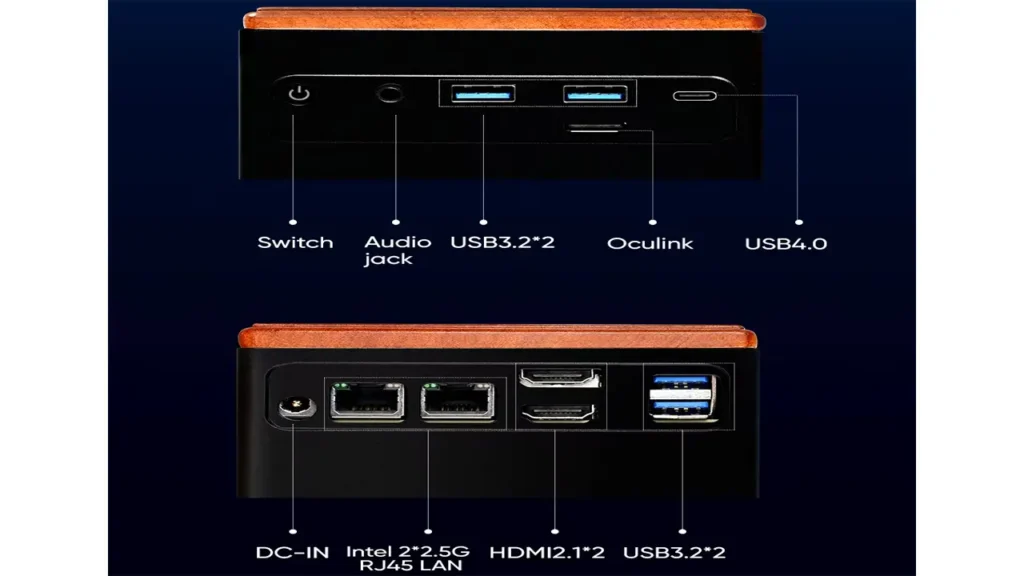
The most interesting part of the mini pc with oculink port trend is that it’s not coming from the usual suspects. Dell, HP, and Lenovo aren’t putting OCuLink on their ThinkCentre Tiny or EliteDesk Micro systems. Instead, it’s Chinese manufacturers like Minisforum, GMKtec, GEEKOM, and Beelink who saw the opportunity and ran with it.
These companies recognized that their core audience—enthusiasts who want maximum flexibility in minimal space—would absolutely value a direct PCIe connection for external GPUs. Models like the Minisforum UM790 Pro, various GMKtec NucBox models with Ryzen processors, and several Beelink SER series systems now ship with OCuLink as a standard or optional feature.
What makes this particularly clever is the market positioning. These mini PCs typically use powerful AMD Ryzen or Intel processors that can absolutely drive a high-end GPU if the bottleneck of the interface is removed. A Ryzen 9 7940HS paired with an RTX 4070 through OCuLink gives you near-desktop gaming performance in a setup that takes up a fraction of the desk space and runs nearly silent during non-gaming tasks.
The oculink egpu mini pc configuration has become a signature feature for these brands. It’s a differentiator that appeals to a specific but growing audience: people who want a quiet, efficient computer for work that can transform into a gaming beast when needed, without committing to a full tower case or dealing with the performance compromises of Thunderbolt.
OCuLink eGPU Dock — What Makes a Good Breakout Solution
When it comes to oculink egpu dock options, the market is still developing but several clear patterns have emerged. Unlike Thunderbolt eGPU enclosures which are essentially plug-and-play all-in-one solutions, OCuLink docks tend to be more DIY-friendly and focused on performance over aesthetics.
The most popular approach is the “breakout board” style—essentially a PCIe x16 slot on an adapter board with an OCuLink connector, space for a power supply, and basic structural support for the GPU. Brands like ADT and various Taobao specialists offer these in price ranges from $50 to $150 depending on build quality, included power supply, and form factor.
Key considerations for choosing an OCuLink dock include power delivery capability—you need a PSU that can handle your GPU’s power requirements plus overhead, typically meaning at least a 500W unit for mid-range cards and 750W+ for high-end GPUs. Cable length matters too; OCuLink cables are typically limited to 1-2 meters for signal integrity, so plan your desk layout accordingly.
Cooling is often overlooked but critical. Unlike internal installation where case airflow is designed around component placement, an external GPU in a dock needs adequate ventilation. Open-air designs work but can be loud and dusty. Semi-enclosed solutions offer better acoustics but require active cooling to prevent thermal throttling. The sweet spot for most users is a dock with mesh sides and a large, slow-spinning exhaust fan.
PCIe x4 External GPU — Why Four Lanes Is Enough (Mostly)
Understanding pcie x4 external gpu limitations is crucial to setting realistic expectations. A full x16 slot running PCIe 3.0 provides about 128 Gbps of bandwidth, while x4 gives you roughly a quarter of that at ~32 Gbps. So shouldn’t you lose 75% of your GPU’s performance?
Not quite. The reality is that most gaming workloads don’t fully saturate even a PCIe 3.0 x8 connection, let alone x16. At 1080p and 1440p resolutions, even high-end cards like the RTX 4080 or RX 7900 XTX typically see only a 10-15% performance reduction when running through PCIe 3.0 x4 compared to x16. This has been validated by numerous independent tech reviewers who’ve tested GPUs in different slot configurations.
The performance impact becomes more pronounced in specific scenarios: 4K gaming with maximum texture quality settings, professional 3D rendering with large scene files, and machine learning workloads with massive datasets all benefit from wider PCIe lanes. But for mainstream 1080p and 1440p gaming, x4 is genuinely sufficient.
There’s an important nuance here regarding PCIe generations. PCIe 4.0 x4 provides the same bandwidth as PCIe 3.0 x8, and PCIe 5.0 x4 matches PCIe 3.0 x16. Most current OCuLink implementations use PCIe 3.0 x4, which is why upcoming mini PCs with PCIe 4.0 OCuLink support are so exciting—they’ll essentially double the available bandwidth and push performance losses into the single digits for most applications.
| Resolution | PCIe 3.0 x4 Performance Impact | Typical Use Case |
|---|---|---|
| 1080p | 5-10% loss vs x16 | Competitive gaming, esports |
| 1440p | 10-15% loss vs x16 | Mainstream gaming, content creation |
| 4K | 15-20% loss vs x16 | High-end gaming, 3D rendering |
OCuLink Cable Bandwidth — The Numbers Behind the Marketing
Let’s talk specifics about oculink cable bandwidth because this is where marketing can get misleading. OCuLink cables using the SFF-8612 standard (which is what you’ll find in mini PC implementations) support PCIe 3.0 x4 connectivity with a theoretical maximum of 31.5 GB/s, or roughly 252 Gbps if you want to use marketing-friendly bits instead of bytes.
Compare this to Thunderbolt 4’s 40 Gbps, and you might think Thunderbolt has OCuLink beat by a massive margin. But remember, that 40 Gbps is bidirectional and shared across all Thunderbolt peripherals on the port, and it’s carrying protocol overhead. The effective PCIe bandwidth available to a Thunderbolt eGPU is closer to 22-28 Gbps depending on other factors.
OCuLink’s bandwidth is dedicated and direct. Every bit of that capacity goes to GPU communication, and because it’s native PCIe, there’s no encapsulation penalty. This means the “slower on paper” OCuLink connection often delivers better real-world performance than the “faster” Thunderbolt option.
Cable quality matters enormously for OCuLink. Unlike Thunderbolt which has active chips in the cables themselves to maintain signal integrity, OCuLink cables are passive and more sensitive to length and quality. A cheap cable can introduce signal degradation that manifests as system instability or crashes. Stick with cables from reputable manufacturers and keep lengths under 1.5 meters for reliability.
One more thing: OCuLink cables don’t carry power like Thunderbolt does. Your eGPU dock needs its own power supply, and your mini PC needs its own power adapter. This is actually an advantage in disguise—it means no power delivery negotiation issues and no risk of underpowering either component because they’re trying to share limited wattage.
External Graphics Card Mini PC — Who Actually Benefits From This Setup
The external graphics card mini pc concept isn’t for everyone, and that’s okay. Understanding who benefits most helps you decide if it’s worth the investment and potential troubleshooting.
Gamers with space constraints are the obvious audience. If you live in a small apartment, dorm room, or just have a compact workspace, a mini PC with OCuLink eGPU gives you gaming performance approaching a desktop but with a footprint measured in tens of square inches rather than cubic feet. You can tuck the mini PC behind a monitor or mount it to your desk, and only break out the eGPU when gaming.
Content creators who need GPU acceleration but don’t want fan noise during recording benefit tremendously. A mini PC can run nearly silent during talking-head videos, podcasts, or live streams, then connect to an eGPU in a separate location for rendering video edits without the fan noise bleeding into your audio. This use case is surprisingly common among YouTubers and streamers who’ve discovered the flexibility of separable components.
3D artists and CAD users working with programs like Blender, Maya, or SolidWorks need GPU acceleration but often benefit from a quiet work environment during the modeling phase, only needing full GPU power during renders. An OCuLink setup lets you keep the fan noise away from your workspace until it’s actually needed.
AI and machine learning enthusiasts working with local models find that OCuLink eGPUs provide adequate bandwidth for inference and even training on smaller datasets. While it’s not ideal for production-scale ML work, for experimentation and learning with frameworks like TensorFlow or PyTorch, the setup performs well enough to be practical.
Who doesn’t benefit? People who want the absolute simplest plug-and-play experience should probably stick with Thunderbolt despite the performance penalty. If you’re not comfortable occasionally diving into BIOS settings or troubleshooting driver quirks, OCuLink’s performance advantage might not offset the additional complexity. Similarly, if you already have a desktop or aren’t space-constrained, a traditional tower with internal GPU remains the most cost-effective performance option.

Thunderbolt eGPU Bottleneck — Common Mistakes and How to Avoid Them
Even though we’re champions of OCuLink here, it’s worth addressing the thunderbolt egpu bottleneck phenomenon because many of the optimization principles apply across both interfaces, and some readers might be troubleshooting existing Thunderbolt setups.
The single biggest mistake is using the wrong cable. Not all Thunderbolt cables are created equal—some are rated for 20 Gbps (USB 3.1 speeds), some for 40 Gbps but only at short lengths, and some for full-spec 40 Gbps at 2 meters. Using a lower-spec cable can cut your eGPU performance in half. Always verify your cable is rated for 40 Gbps and, ideally, certified by the Thunderbolt standards body.
Power delivery conflicts are another silent killer. If your mini PC and eGPU enclosure are both trying to negotiate who provides power to whom over the Thunderbolt cable, you can end up with power cycling, unexpected disconnections, or throttled performance. The solution is usually to disable power delivery in your eGPU enclosure’s settings or ensure your mini PC is plugged into its dedicated power adapter rather than trying to run off eGPU-provided power.
Display configuration has a massive impact on performance that many users overlook. If you’re gaming with the laptop/mini PC’s internal display or a monitor connected to the mini PC while the eGPU is doing the rendering, the system has to send rendered frames back through the Thunderbolt cable to your display. This creates significant additional bandwidth usage and latency. Always connect your primary display directly to the eGPU’s video outputs for best performance—this eliminates the bandwidth loopback and improves frame rates by 10-20% in many cases.
Thermal throttling in the eGPU enclosure is surprisingly common. Many compact eGPU boxes have marginal cooling that allows a GPU to hit thermal limits under sustained load. Monitor your GPU temperatures and ensure the enclosure has adequate ventilation. Adding a small external fan to improve airflow can prevent throttling and maintain consistent performance.
Driver conflicts, particularly on Windows, can cause stuttering or reduced performance. Always use the latest GPU drivers, but also check for BIOS and Thunderbolt firmware updates from your mini PC manufacturer. Outdated firmware can limit Thunderbolt controller performance or introduce compatibility issues that manifest as poor eGPU performance.
OCuLink Adapter M.2 — The DIY Path and Its Pitfalls
Here’s where things get interesting for tinkerers: oculink adapter m.2 solutions that let you add OCuLink capability to systems that don’t have it natively. These adapters use an M.2 slot (typically an M.2 E-key WiFi slot or an M.2 M-key NVMe slot) to provide OCuLink connectivity.
The concept is clever. M.2 slots are PCIe connections, and OCuLink is just PCIe with a different connector. An adapter board can bridge the two with minimal electronic complexity. For mini PCs or laptops with an accessible M.2 slot, this seems like an easy way to add eGPU capability.
The reality is more complicated. First, you need to verify your M.2 slot actually provides PCIe lanes and not just USB or SATA. Many WiFi M.2 E-key slots only provide PCIe x1 or even just USB connectivity, which severely limits eGPU performance or makes it completely non-functional. M.2 M-key NVMe slots typically provide PCIe x4, which is ideal, but using it for OCuLink means sacrificing your NVMe SSD storage.
BIOS support is the bigger issue. For an external GPU to work, your system’s BIOS needs to initialize it during boot. Many mini PC and laptop BIOSes aren’t programmed to expect a GPU on an M.2 slot and will simply ignore it. Some systems have hidden BIOS options to enable above-4G decoding and resizable BAR support which can help, but there’s no guarantee.
You’re also voiding warranties in most cases. Opening your mini PC, removing an M.2 WiFi card, and installing a third-party adapter will typically void manufacturer support. For devices under warranty, this is a significant consideration.
Physical compatibility can be tricky too. M.2 to OCuLink adapters often include a cable that needs to exit the chassis somehow. Some mini PC cases have ventilation grilles that can accommodate a cable, others don’t. You might need to drill or dremel your case, which is both aesthetically questionable and potentially dangerous if you hit something important.
That said, for the right person with the right hardware, M.2 to OCuLink adapters can be an excellent solution. If you have an older mini PC with a spare M.2 slot, the technical skills to troubleshoot BIOS settings, and you’ve verified compatibility through forums or reviews, a $30-50 adapter can breathe new life into your system. Just go in with realistic expectations and a backup plan.
The Bottom Line: OCuLink Is Reshaping Compact Computing
The oculink egpu mini pc trend represents something larger than just a niche interface option. It’s evidence that the computing market is fragmenting into more specialized niches where off-the-shelf solutions from major OEMs don’t serve everyone’s needs. Chinese manufacturers identified an underserved market—enthusiasts who want maximum performance in minimum space and are willing to sacrifice some plug-and-play convenience for better results.
For the right user, an OCuLink-equipped mini PC paired with an external GPU delivers an almost magical experience. You get a completely silent, tiny computer for daily work that draws under 30 watts, then the ability to transform it into a legitimate gaming machine when you want to play. The performance penalty compared to a desktop is minimal, the desk space savings are enormous, and the flexibility to upgrade just the GPU while keeping the mini PC is valuable.
The technology still has rough edges. BIOS support can be inconsistent, cable selection matters more than it should, and the dock ecosystem isn’t as mature as Thunderbolt enclosures. But for anyone who’s ever felt frustrated by the 20-30% performance loss of Thunderbolt eGPUs or wished their compact PC could handle serious GPU workloads, OCuLink is the answer that’s been hiding in plain sight.
As PCIe 4.0 and eventually 5.0 OCuLink implementations become more common, the performance gap between external and internal GPUs will shrink even further. We’re approaching a future where “desktop replacement” might actually mean something closer to desktop equivalent rather than desktop compromise. And that’s a future worth getting excited about, even if most people still haven’t heard of OCuLink.

Frequently Asked Questions
Q: Can I use any GPU with an OCuLink eGPU dock?
Most modern GPUs work fine with OCuLink docks, but verify your dock’s power supply can handle your chosen GPU. High-end cards like the RTX 4090 need 450W+ capable PSUs, while mid-range options like the RTX 4060 work fine with 400-500W units. Also ensure your mini PC’s CPU won’t create a bottleneck—pairing a low-end CPU with a flagship GPU wastes money.
Q: Is OCuLink faster than Thunderbolt for eGPU use?
Yes, typically by 5-15% in gaming scenarios. OCuLink provides direct PCIe connectivity without protocol overhead, resulting in lower latency and less performance loss compared to Thunderbolt’s encapsulation method. The difference is most noticeable in high-frame-rate gaming and GPU-intensive creative work.
Q: Do I need special drivers for OCuLink eGPU?
No special drivers needed—OCuLink appears as a native PCIe device to your operating system. Simply install standard GPU drivers from NVIDIA or AMD. However, your mini PC’s BIOS needs to support external GPU initialization, which most OCuLink-equipped models handle automatically.
Q: Can I hot-plug an OCuLink eGPU?
Generally no. OCuLink is PCIe, which isn’t designed for hot-plugging like Thunderbolt. Connect the eGPU before powering on your mini PC and don’t disconnect while the system is running. Some systems may support hot-plug with specific BIOS settings, but it’s not recommended and can cause system instability.
Q: What’s the maximum OCuLink cable length?
For reliable performance, stay under 1.5 meters. Passive OCuLink cables are sensitive to signal degradation at longer lengths. Some manufacturers offer 2-meter cables with better shielding, but signal integrity isn’t guaranteed. If you need more distance, consider relocating your setup rather than using longer cables.
OCuLink is all about cutting layers and getting a more direct connection—less friction, more control. Funny enough, the same mindset is showing up in cars: EV makers are rethinking touch-only dashboards and bringing buttons back. Here’s the trend and why it matters, as safety ratings start shaping interior design: https://autochina.blog/physical-buttons-in-ev-interiors-trend-euro-ncap/
