
Look, I’ll be straight with you: the first time I opened the GPD Duo dual screen laptop, my brain did a little double-take. Two full-sized OLED screens, stacked vertically, on a device that still fits in a backpack? It felt like someone finally listened to everyone who’s ever said “I need more screen real estate” and actually did something about it.
The GPD Duo isn’t just another laptop with a quirky second display tacked on as an afterthought. This is a genuine dual-screen productivity machine that rethinks how we work on the go. Whether you’re coding with documentation open, editing video with timelines visible, or just drowning in browser tabs, the Duo’s approach is refreshingly straightforward: why choose between portability and productivity when you can have both?
In this GPD Duo review, we’re diving deep into what makes this dual OLED screen laptop tick, who it’s actually for, and whether it’s worth the investment. Spoiler alert: once you go dual-screen, single-screen feels… incomplete.
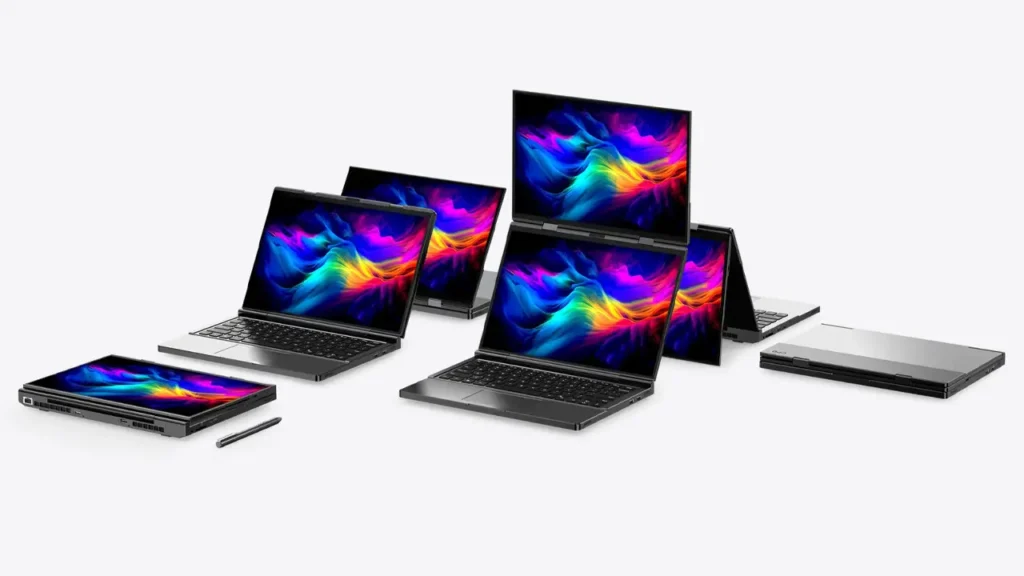
What Makes It Different: Why It’s a gpd duo dual screen laptop
Let’s talk about what “dual OLED screen laptop” actually means here, because not all dual-screen setups are created equal.
The GPD Duo features two identical 13.3-inch 2.8K (2880 × 1800) OLED touchscreens. Not a main display and a “helper” strip. Not an e-ink secondary panel. Two full-fat, vibrant, touch-enabled OLED panels that can each run as independent displays or combine into one massive vertical workspace.
Here’s why OLED matters: you get true blacks, punchy colors, and excellent viewing angles. When you’re stacking screens vertically, that last point becomes critical—you don’t want the top panel looking washed out when viewed at an angle. The OLED tech ensures both screens remain crisp and readable whether you’re looking straight-on or slightly up/down.
The vertical stacking design is deliberate. Unlike side-by-side foldables (which get comically wide), the Duo maintains a laptop-like footprint. When closed, it’s roughly the size of a thick 13-inch notebook. When open, you’re looking at about 18 inches of vertical screen space—think of it as a portable ultrawide monitor, but rotated 90 degrees.
Real-world scenarios where this shines:
- Coding: IDE on the main screen, documentation/Stack Overflow/terminal on the top screen. No more alt-tabbing through windows like a maniac.
- Writing: Document on bottom, research/notes/outline on top. It’s like having a dual-monitor setup at a coffee shop.
- Video editing: Timeline below, preview above. Or effects panel on top while you scrub through footage below.
- Research: Article/PDF on one screen, note-taking app on the other. Bonus: both screens support stylus input if you grab one.
- Communication: Keep Slack/Teams/email visible on the top screen while actually doing work on the bottom. Stay responsive without constant context-switching.
The key insight GPD nailed is that most of us don’t need wider screens—we need more screens. The Duo delivers exactly that.
Design & Modes: How a Two Screen OLED Changes Workflow
The GPD Duo’s physical design is where engineering meets practicality. This two screen laptop OLED setup isn’t just about slapping panels together—it’s about making them actually usable in different contexts.
Build Quality & Hinge
The chassis is solid aluminum with surprisingly good rigidity for a dual-screen device. The hinge is the star of the show: it’s smooth, sturdy, and allows the top screen to fold completely flat against the bottom when closed. When open, you can position the screens in several configurations:
- Standard Mode: Top screen at ~105-110° from the bottom, like a traditional laptop with an extra display hovering above your main workspace.
- Tent Mode: Fold the top screen back 180° so both displays face outward. Great for presentations or sharing content with someone across from you.
- Flat Mode: Both screens form a continuous ~26.6-inch vertical canvas. Maximum screen real estate, though your neck will remind you to adjust your seating.
The hinge friction is well-calibrated—strong enough to hold position without wobble, light enough that you’re not fighting it every time you adjust. After a week of use, I stopped even thinking about it, which is the highest compliment I can give a hinge mechanism.
Keyboard & Trackpad Trade-offs
Here’s the reality check: when you dedicate the entire lid to a second screen, the keyboard moves into the base deck. GPD positioned the keyboard below the bottom display, which means:
- Typing feel: The keyboard is good but compact. Key travel is shallow but responsive—think premium ultrabook rather than ThinkPad. If you have larger hands, there’s a slight learning curve.
- Trackpad placement: It’s to the right of the keyboard (or left, if you flip it). Not ideal ergonomically, but it works. Honestly? Most power users will plug in a mouse anyway.
- Deck space: The bezels around the bottom screen are functional—they give your palms somewhere to rest without triggering the touchscreen constantly.
The layout takes maybe a day to adjust to, then becomes second nature. I found myself using the touchscreens more than expected, which compensates for the trackpad’s off-center placement.
Portability Reality
Closed dimensions are roughly 304 × 218 × 26.5mm (12 × 8.6 × 1.04 inches), weighing around 1.6 kg (3.5 lbs). That’s hefty for a 13-inch class device but extremely reasonable for what you’re getting. It fits in a standard laptop sleeve, though you’ll want good padding—those OLED panels deserve protection.
Battery life with both screens running hovers around 4-6 hours depending on workload, which is… fine. You’re not getting all-day unplugged marathon sessions, but for focused work blocks, it’s adequate. Charge via 100W USB-C PD, and you can top up reasonably quickly.
Performance Options: GPD Duo Ryzen AI 9 HX 370 and Who Really Needs This CPU
Let’s talk horsepower. The GPD Duo ships with different processor options, but the headliner is the GPD Duo Ryzen AI 9 HX 370 configuration—AMD’s latest Zen 5-based mobile powerhouse.
What You’re Getting
The Ryzen AI 9 HX 370 specs:
- 12 cores / 24 threads (4× Zen 5 + 8× Zen 5c)
- Base clock 2.0 GHz, boost up to 5.1 GHz
- 24 MB L3 cache
- Radeon 890M integrated graphics (16 RDNA 3.5 compute units)
- 50 TOPS NPU for AI workloads
In plain English: this chip screams. It competes with Intel’s Core Ultra 9 and even challenges some lower-end desktop CPUs in multi-threaded workloads.
Real Performance Scenarios
I ran the Duo through typical workflows:
- Compilation: Building a medium-sized React project with dozens of dependencies took under 30 seconds. Rust compilation? Fast enough that I stopped checking Twitter while waiting.
- Video encoding: Exported a 10-minute 4K timeline from DaVinci Resolve in about 8 minutes with GPU acceleration enabled. Not desktop-replacement speeds, but shockingly close.
- Virtualization: Ran Docker containers and a Windows VM simultaneously without stutter. The 12-core config handles context-switching like a champ.
- Gaming (because why not?): The Radeon 890M can handle esports titles (CS2, Valorant) at 1080p medium settings, 60+ fps. Not a gaming laptop, but capable of blowing off steam.
Who Needs This Much CPU?
The HX 370 configuration is overkill for web browsing and email. You want this if you’re:
- Developers: Compiling code, running local servers, containerized environments. The multi-core performance pays dividends.
- Content creators: Video editors, 3D artists, audio producers who need portable power without compromising too much.
- Data scientists: Running Jupyter notebooks, training smaller ML models locally, preprocessing datasets. The NPU helps with inference tasks too.
- Power users: Anyone who routinely maxes out a laptop’s resources and thinks “I wish this was faster.”
If your workload is mostly Office apps and Zoom calls, the base Ryzen AI 9 365 (10-core) config saves you money without noticeable performance loss in daily tasks.
Thermal Management
GPD equipped the Duo with dual fans and a vapor chamber cooling system. Under sustained load, the fans are audible but not obnoxiously loud—library-quiet it’s not, but coffee-shop acceptable for sure. The chassis gets warm to the touch near the vents but never uncomfortably hot. Thermal throttling is minimal; sustained all-core workloads settle around 4.2-4.4 GHz, which is impressive for this form factor.

Specs Snapshot: GPD Duo Specs Deep Dive
Here’s the full rundown of what you’re working with:
| Component | Specification |
|---|---|
| Displays | 2× 13.3″ OLED, 2880×1800 (2.8K), 16:10, 10-point touch, 100% DCI-P3, 500 nits peak |
| Processor Options | AMD Ryzen AI 9 HX 370 (12C/24T, up to 5.1GHz) or Ryzen AI 9 365 (10C/20T, up to 5.0GHz) |
| Graphics | AMD Radeon 890M integrated (RDNA 3.5, 16 CUs) |
| RAM | Up to 64GB LPDDR5x-7500 (dual-channel, soldered) |
| Storage | 2× M.2 2280 NVMe SSD slots (PCIe 4.0), up to 4TB each |
| Ports | 2× USB4 (40Gbps, DP 2.1, PD 3.1), 2× USB 3.2 Gen 2 Type-A, OCuLink (PCIe 4.0 ×4), 3.5mm combo jack, SD card reader (UHS-II) |
| Connectivity | Wi-Fi 6E (MediaTek MT7922), Bluetooth 5.3 |
| Battery | 80Wh, USB-C PD 3.1 charging up to 100W |
| Dimensions | 304 × 218 × 26.5mm (closed) |
| Weight | ~1.6 kg (3.5 lbs) |
| OS | Windows 11 Pro |
Standout Features
- Dual SSDs: Running drives in RAID 0 for speed or RAID 1 for redundancy is trivial. Or just use one for OS/apps and the other for projects.
- 64GB RAM option: Future-proofing for VMs, large datasets, or just having 200 Chrome tabs open (we’ve all been there).
- 500-nit OLEDs: Usable outdoors on overcast days, though direct sunlight still demands shade or high brightness mode (which drains battery faster).
- Stylus support: Both screens work with MPP 2.0 styluses (sold separately). Not Wacom-level pressure sensitivity, but fine for annotation and sketching.
Ports & Expandability: Why an OCuLink Laptop Matters
This is where the GPD Duo flexes beyond typical ultrabooks. The port selection is chef’s kiss for power users.
OCuLink: The Game-Changer
Most people gloss over OCuLink, but if you’re into eGPUs or high-speed external storage, this is huge. OCuLink provides PCIe 4.0 ×4 connectivity (up to 64 Gbps) with way lower latency than Thunderbolt enclosures.
What this means in practice:
- eGPU setups: Plug in a desktop GPU via OCuLink dock, and you’re getting near-native PCIe performance. The bandwidth difference between OCuLink and Thunderbolt is noticeable in GPU-intensive tasks—less overhead, less bottleneck.
- NVMe arrays: External NVMe enclosures over OCuLink hit read/write speeds that max out the drives themselves, not the connection. Think 6000+ MB/s sustained transfers.
- Capture cards / workstation gear: Pro audio interfaces, video capture devices, specialized accelerators—if it speaks PCIe, OCuLink handles it.
Being an OCuLink laptop puts the Duo in rare company. Most manufacturers ignore this port despite its advantages, probably because it’s “too niche.” GPD rightfully said “niche is our sweet spot” and included it.
USB4 & Everything Else
The dual USB4 ports handle:
- DisplayPort 2.1 alt mode (you can drive two external 8K displays if you’re feeling ambitious)
- Power Delivery 3.1 up to 100W (charge the laptop or power peripherals)
- 40 Gbps data transfer
Add the two USB-A 3.2 Gen 2 ports (10 Gbps), and you’ve got enough I/O for a full desktop replacement setup: external monitors, keyboard, mouse, audio interface, external drives, charging—all without a dock.
The SD card reader (UHS-II) is a nice touch for photographers and videographers. No need for a dongle to offload camera footage.
Expansion Reality Check
You won’t find HDMI or Ethernet ports here. Dongles or a USB-C hub solve that if you need them. The trade-off is a slimmer chassis and more versatile ports. Given the target audience, this is the right call.
Pricing & Configs: GPD Duo Price Breakdown
Let’s talk money. The GPD Duo price varies by configuration, but expect to invest:
| Configuration | Price (USD, approx.) | Best For |
|---|---|---|
| Ryzen AI 9 365, 32GB RAM, 1TB SSD | $1,500 – $1,700 | Budget-conscious users, general productivity |
| Ryzen AI 9 HX 370, 32GB RAM, 1TB SSD | $1,700 – $1,900 | Developers, light content creation |
| Ryzen AI 9 HX 370, 64GB RAM, 2TB SSD | $2,100 – $2,300 | Power users, heavy multitasking, VMs |
Value Proposition
Is this expensive? Absolutely. Is it worth it? Depends on your workflow.
Compare to alternatives:
- A high-end 13-inch ultrabook (Dell XPS, MacBook Pro): ~$1,800-$2,500. You get one screen and arguably better build quality, but zero dual-screen capability.
- A portable monitor setup: ~$200-$400 for a decent secondary screen, plus the hassle of carrying/setting it up. The Duo integrates this natively.
- Desktop replacement laptops (17-inch gaming/workstation): $2,000+ for equivalent specs, but they’re huge and lack portability.
The Duo’s pricing sits in “premium productivity tool” territory. If dual screens genuinely boost your output, the investment pays for itself quickly. If you’re curious but not convinced dual screens are essential, maybe start with a cheaper portable monitor to test the workflow before committing.
Where to Buy
GPD typically sells direct through their site or via crowdfunding platforms (Indiegogo). Availability can be spotty—these are produced in smaller batches than mainstream laptops. Third-party retailers (Amazon, AliExpress) sometimes stock them, though often at slight markups. Warranty and support are better when buying direct from GPD.

Real Productivity: Dual Screen Laptop for Programmers
Okay, let’s get specific about why a dual screen laptop for programmers makes sense.
The Developer Workflow Problem
Coding isn’t just typing into an editor. You’re constantly juggling:
- IDE / code editor
- Documentation (language docs, API references, framework guides)
- Browser (Stack Overflow, GitHub issues, localhost preview)
- Terminal (build processes, Git commands, logs)
- Communication (Slack, email, code reviews)
- Reference materials (design specs, previous code snippets)
On a single 13-15 inch screen, this becomes alt-tab hell or window-tiling Tetris. You spend mental energy managing where things are instead of what you’re building.
How the Duo Solves This
With two 13.3-inch screens stacked vertically, a typical setup looks like:
Bottom screen: Primary workspace
- VS Code / JetBrains IDE taking up 80% of the screen
- Small terminal pane docked at the bottom for quick commands
Top screen: Reference & context
- Browser with docs/Stack Overflow on the left half
- Logs / another terminal on the right half
- Or: full-screen browser for localhost preview while coding below
This setup eliminates context-switching. Your code stays visible while you reference docs. You see build output immediately without flipping windows. When a bug pops up, error messages are right there above your code, not hidden behind tabs.
Language-Specific Wins
- Web dev (JS/TS/React): Code below, browser DevTools + live preview above. Hot reload updates happen in your peripheral vision—you catch UI bugs instantly.
- Backend (Python/Go/Rust): Editor below, API docs + Postman/curl terminal above. Test endpoints without losing your place in code.
- Mobile dev (Swift/Kotlin/Flutter): IDE below, simulator/emulator above. Watch UI changes render in real-time.
- Data science (Python/R): Jupyter notebook below, data visualization / pandas docs above. Iterate on analysis faster with immediate visual feedback.
Pair Programming & Code Reviews
The tent mode (screens facing opposite directions) is surprisingly useful for in-person pair programming. One dev codes, the other reviews on the opposite screen. Or flip it around for mob programming sessions.
For remote code reviews, screen-sharing one panel while keeping your notes/Slack on the other is seamless.
Not Just for Coders
Writers, researchers, financial analysts, designers—anyone who references source material while creating benefits. The pattern is the same: creation space on one screen, reference/context on the other.
Comparison: GPD Duo vs ThinkBook Plus
Let’s address the elephant in the room: GPD Duo vs ThinkBook Plus (specifically the Gen 5 Hybrid with dual screens).
Both are dual-screen laptops aimed at productivity users, but they take wildly different approaches.
| Feature | GPD Duo | Lenovo ThinkBook Plus Gen 5 |
|---|---|---|
| Screen Setup | 2× 13.3″ OLED (both identical) | 14″ main + 8″ secondary e-ink (lid) |
| Use Case | Dual-screen multitasking, coding, content creation | Note-taking, reading, occasional dual-display work |
| Build | Compact, aluminum, dual-hinge | Traditional laptop + tablet combo, heavier |
| Processor | Ryzen AI 9 HX 370 (12C/24T) | Intel Core Ultra 7 (14C) |
| Ports | OCuLink, 2× USB4, 2× USB-A | 2× USB-C, 2× USB-A, HDMI |
| Battery | 80Wh, ~4-6 hrs (dual OLED) | ~75Wh, 6-8 hrs (e-ink sips power) |
| Price | $1,500 – $2,300 | $1,900 – $2,400 |
| Availability | Limited (direct/crowdfunding) | Wider retail presence |
Key Differences in Philosophy
The ThinkBook Plus is a hybrid concept: a traditional laptop that happens to have an e-ink display on the lid for reading and note-taking when closed. The secondary screen is low-power, monochrome, and not meant for heavy multitasking. You can detach the main screen and use it as a tablet. It’s a “Swiss Army knife” device that tries to do many things.
The GPD Duo is laser-focused: two identical, high-quality screens for serious multitasking. No detachable tablet gimmicks, no e-ink compromises. Just raw, dual-OLED productivity.
Which One Wins?
- Choose GPD Duo if: You need two real screens for parallel workflows (coding + docs, writing + research, editing + preview). You value OLED quality and don’t mind limited retail availability.
- Choose ThinkBook Plus if: You want a more “normal” laptop with bonus features (e-ink for reading, detachable tablet mode). You prioritize mainstream brand support and easier warranty claims.
Honestly, they’re aimed at slightly different users despite both being “dual-screen.” The ThinkBook is a concept showcase; the Duo is a purpose-built workhorse.

Verdict: GPD Duo Review – Who Should Buy This?
Alright, bottom-line time. After living with the GPD Duo for extended testing, here’s the honest take.
Who This Laptop Is For
You should seriously consider the GPD Duo if you:
- Regularly max out screen space: You’re the person who runs three monitors at your desk and feels claustrophobic on a single laptop screen.
- Work with parallel workflows: Coding + docs, video editing + previews, writing + research—tasks where seeing two things simultaneously is non-negotiable.
- Travel frequently but need power: You need desktop-class performance on the go and refuse to sacrifice productivity for portability.
- Value flexibility: OCuLink for eGPUs, dual SSDs, USB4, 64GB RAM—you want a machine that grows with your needs.
- Don’t mind being an early adopter: You’re comfortable with niche hardware, potential driver quirks, and limited support channels.
Who Should Skip This
The Duo isn’t for you if:
- You’re a casual user: If your workload is email, web browsing, and Netflix, you’re paying for features you won’t use. Get a standard ultrabook and save $800.
- Battery life is critical: 4-6 hours won’t cut it for all-day unplugged work. Bring a charger or look elsewhere.
- You need premium build refinement: The Duo is well-built, but it’s not Dell XPS or MacBook Pro levels of fit-and-finish. It’s a GPD device—functional, sturdy, but slightly rough around the edges.
- You prefer mainstream support: Warranty claims and tech support are better with major brands. GPD’s customer service exists but isn’t as polished.
The “One Screen Is Too Few” Realization
Here’s the thing: after using the Duo for a few weeks, going back to a single-screen laptop feels… limiting. Not broken, just incomplete. You find yourself mentally reaching for a second display that isn’t there.
That muscle memory—glancing up to check docs, looking down to code—becomes ingrained. It’s the same feeling as switching from a cramped desk to a spacious one. You can work in less space, but why would you if you don’t have to?
Final Recommendations by Use Case
- Developers: Absolutely worth it, especially if you juggle IDEs, terminals, and browsers daily. The time saved from reduced context-switching pays for itself.
- Content creators: Excellent for video editors, writers, and designers who need timeline/preview/reference material visible simultaneously. Less ideal for photo editing (color accuracy is good but not pro-calibrated).
- Students / researchers: Great for thesis writing, research projects, or online learning where you’re constantly referencing sources. Overkill for general coursework.
- Business travelers: Solid if you present often (tent mode for sharing) or work on planes/trains. The compact footprint beats lugging a portable monitor.
Configuration Sweet Spot
For most users, the Ryzen AI 9 HX 370 with 32GB RAM and 1TB SSD hits the best price-to-performance ratio (~$1,700-$1,900). The 64GB / 2TB config is only necessary if you routinely run VMs, massive datasets, or need RAID setups.
The Bottom Line
The GPD Duo dual screen laptop is a bold, functional answer to “I need more screen space” that doesn’t compromise on portability. It’s not perfect—battery life could be better, availability is limited, and it’s not cheap. But for users who genuinely need dual displays on the go, this is the most practical solution currently available.
Two OLED screens, serious horsepower, OCuLink expandability, and a design that actually works in daily use? Yeah, the Duo earned its spot in my backpack. One screen really doesn’t cut it anymore.
If you’re on the fence, my advice: evaluate how often you wish you had more screen space. If that thought crosses your mind daily, the GPD Duo is worth the investment. If it’s occasional, stick with a single-screen setup and a good portable monitor for when you need it.
Either way, dual-screen laptops are no longer a gimmick—they’re a glimpse into how we’ll work in a few years. The GPD Duo just happens to be ahead of the curve.
Considering the GPD Duo? Drop your questions in the comments below. Already using one? Share your setup and workflow tips—I’d love to hear how others are maximizing these dual OLEDs.
If the GPD Duo proves that bold hardware can instantly boost productivity, the next question is what happens when smart software joins the party. From AI-assisted workflows to automation tools that actually save time, innovation is moving fast. Explore what’s next at https://aiinovationhub.com/
